A CRM with calling and texting, through Quo
Ariyel connects to Quo, the business phone system your team calls and texts from, and files every call, text, voicemail and Quo AI call summary on the matching contact and deal. Those same calls and texts can then trigger workflows, and workflows can send consent-checked texts back.
Your team keeps calling and texting from the Quo app they already use. Ariyel holds the history on the record, next to email, meetings, notes and tasks, so the person picking up a client sees the text thread from last Tuesday, not just the emails. Ariyel also connects to Dialpad; this page describes the Quo integration.
What lands on the record
After an owner or admin connects Quo, each kind of activity can be switched on or off under What to bring in:
- Texts, in and out, including pictures
- Calls: who called whom, how long, answered or missed
- Voicemails, with Quo's transcript when available
- Recordings, which stay in Quo (open the call in Quo to listen)
- AI call summaries, Quo's summary of each call (needs Quo Business or higher)
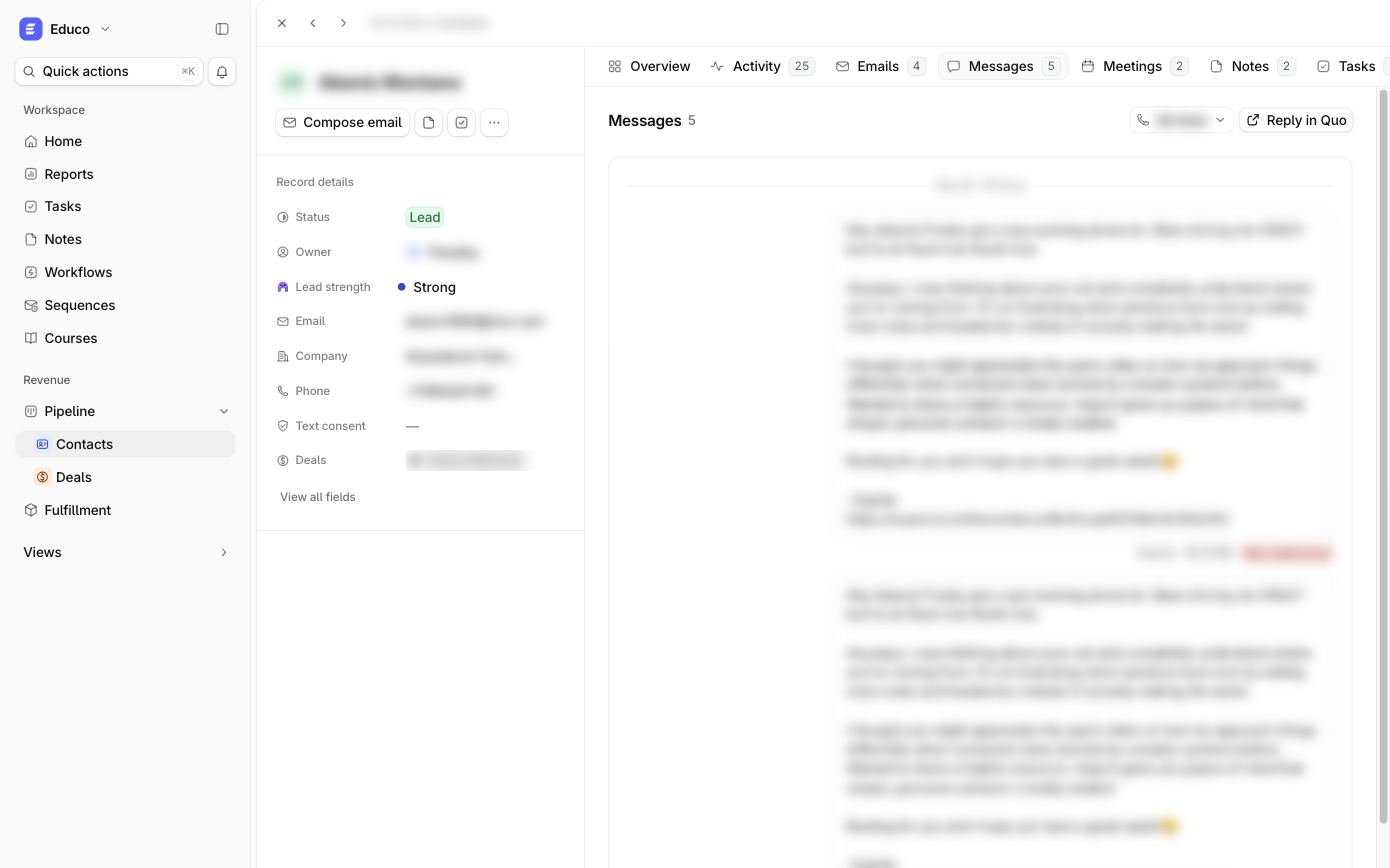
Contacts and deals get a Messages tab with date dividers and a line filter, and Overview shows the five most recent texts and calls plus a Last contact highlight such as Today · text. Activity logs Quo logged a call, Quo logged a text, Quo logged a voicemail.
Matching: a call or text is filed on the contact whose phone number ends in the same last 10 digits, and on that contact's most recently created deal. Calls and texts from unknown numbers can create a contact with the number filled in.
Private lines stay private
Phone conversations are more personal than email, so visibility is set per line:
- Everything (recommended, the workspace default): the rest of the team can read texts, see call details and AI summaries, and listen to voicemails.
- Just who and when: the team sees that a call or text happened, not what was said.
Shared lines follow the workspace setting, and each person can override it on their own personal line. Being an owner or admin doesn't reveal private line content. A blocklist per line (Never log these numbers) keeps personal numbers out of Ariyel entirely.
Text consent is built in
Connecting Quo adds a Text consent field to every contact, shown in plain words, for example Yes · Texted START, Sep 11 or Opted out · Sep 14.
- A contact who texts STOP (or STOPALL, UNSUBSCRIBE, CANCEL, END, QUIT) is set to Opted out automatically, and their Messages tab shows a red banner.
- START or UNSTOP sets them back to Yes.
- Workflows can only text contacts whose consent is Yes. There's no override.
Calls and texts that start work
When Quo texting is enabled, workflows gain four triggers and one action:
| Quo trigger | Example workflow |
|---|---|
| Text received (optionally: first text from this number) | New texter → Send a text acknowledgement → Create task "Reply and qualify" |
| Call completed | Every completed call → Create task "Log outcome and next step" |
| Call summary ready | Quo's AI summary arrives → Create note on the contact |
| Contact opted out | Opt-out → Exit from sequence; Update record Status |
Send a text sends up to 1,600 characters from the record owner's line (or a fixed line), with contact and deal fields filled in. It runs only between 8 AM and 8 PM in the workflow timezone by default; sends outside the window are skipped.
Calls and texts also feed Ari's lead strength: who called or texted and when, and the wording of texts on lines set to Everything. See Ari.
How it works in Ariyel
- Ask Educo to enable Quo access for your workspace.
- In Quo, as a Quo owner or admin, go to Settings → API and generate a key named "Ariyel."
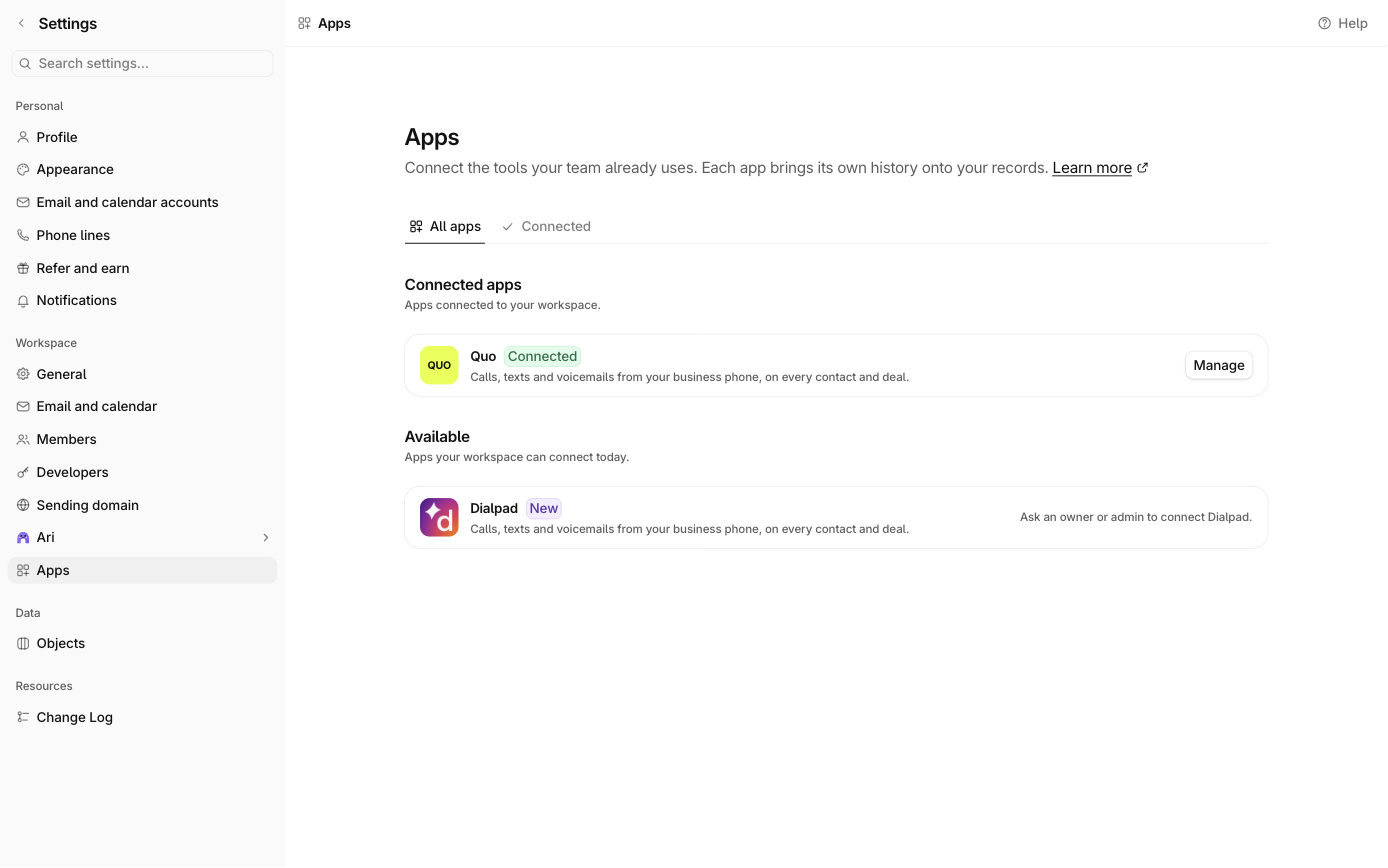
- In Ariyel, go to Settings → Apps → Quo → Connect, paste the key, and pick 30, 60 or 90 days of history.
- Choose what to bring in and the team visibility default.
- Check line matches under Lines so each Quo user maps to the right Ariyel member.
- Set the workflow timezone before building any Send a text workflow.
Implemented for you
During implementation Ariyel's team connects Quo with your admin, matches lines to members, sets line privacy with you, and builds your first text-based follow-up workflow with consent rules in place. See how implementation works.
FAQ
What happens if we disconnect Quo? Imported history stays on records with its privacy rules. New logging stops, and Send a text steps are skipped until you reconnect, without republishing workflows.